What is your developer-dependent CMS actually costing you? Calculate your costs and get a full report


Marketplace Apps
Commercetools
Connect your commercetools products with Agility
Connect your CommerceTools products with Agility CMS. The CommerceTools App allows content editors to browse, search, and attach product information from CommerceTools directly within Agility CMS content items.
Overview
The CommerceTools App provides a seamless integration between Agility CMS and CommerceTools, enabling you to:
- Browse Products: Access your entire CommerceTools product catalog directly within Agility CMS
- Search Functionality: Search products by name using CommerceTools Product Projection Search API
- Rich Product Display: View detailed product information including images, SKUs, pricing, variants, and categories
- Infinite Scroll: Navigate large product catalogs efficiently with automatic pagination
- Direct Links: Quick access to product details in CommerceTools Merchant Center
Requirements
Before installing the CommerceTools App, you need an active CommerceTools account with a configured project. If you don't have one, sign up at commercetools.com.
Setup CommerceTools API Access
Before configuring the app in Agility CMS, you'll need to create an API client in CommerceTools and gather your project configuration details.
Create an API Client
- Log in to your CommerceTools Merchant Center
- Select your project from the project selector
- Navigate to Settings > Developer settings
- Click the API clients tab
- Click Create API client
- Configure your API client:
- Name: Enter a descriptive name (e.g., "Agility CMS Integration")
- Scopes: For security best practices, select only the minimum required scope:
- Scroll down and check View products under the Products section
- This grants
view_products:{projectKey}scope
- Click Create API client
Important: The API client credentials are only displayed once. Make sure to copy and save the following information before leaving the page:
- Project key
- Client ID
- Client secret (keep this secure)
- Scopes
You can optionally download the credentials as an .env file for safekeeping.
Find Your Project Region
Your region is visible in your Merchant Center URL. The format is:
https://mc.{region}.commercetools.com/{projectKey}/...
Common regions include:
us-central1.gcp- US Central (Google Cloud)us-east-2.aws- US East (AWS)europe-west1.gcp- Europe West (Google Cloud)eu-central-1.aws- EU Central (AWS)australia-southeast1.gcp- Australia Southeast (Google Cloud)
Example: If your URL is https://mc.us-central1.gcp.commercetools.com/my-store/..., your region is us-central1.gcp.
Determine Your Locale
The locale defines the language and region for your product data. Common locales include:
en-US- English (United States)en-GB- English (United Kingdom)de-DE- German (Germany)fr-FR- French (France)es-ES- Spanish (Spain)
To find which locales your products use:
- In Merchant Center, navigate to Settings > Project settings
- Check the Languages section to see configured locales
- Alternatively, go to Products and view a product to see which locales have data
Choose the primary locale that your products are published in.
Enable Product Search (Optional)
For search functionality in the product selector:
- Navigate to Settings > Project settings in Merchant Center
- Scroll to the Storefront Search section
- Enable Product Projection Search
- Allow time for products to be indexed (this may take several minutes to hours depending on catalog size)
Without this feature, the app will function but search will be unavailable, and only browsing will be possible.
Installation
Install the App
- Navigate to Settings > Apps in your Agility CMS instance
- Click Install App and search for "CommerceTools"
- Click Install on the CommerceTools App card
- The app will be available immediately in your instance
Configure the App
After installation, configure the app with your CommerceTools credentials:
-
In the app settings, provide the information you gathered from CommerceTools:
- Project Key: Your CommerceTools project key (from the API client credentials)
- Client ID: Your API client ID (from the API client credentials)
- Client Secret: Your API client secret (from the API client credentials)
- Region: Your CommerceTools region from your Merchant Center URL (e.g.,
us-central1.gcp) - Locale: Your product locale (e.g.,
en-US)
-
Click Save to store your configuration
The app will validate your credentials and connect to your CommerceTools project.
Using the CommerceTools Product Field
Add the Field to Your Content Model
- Navigate to Models > Content Models
- Select an existing content model or create a new one
- Click Add Field
- Select CommerceTools Product from the field type dropdown
- Configure the field:
- Label: Display name for the field (e.g., "Featured Product")
- Name: Reference name for the field (e.g., "featuredProduct")
- Description: Optional help text for content editors
- Click Save to add the field to your content model
Select a Product
When creating or editing content:
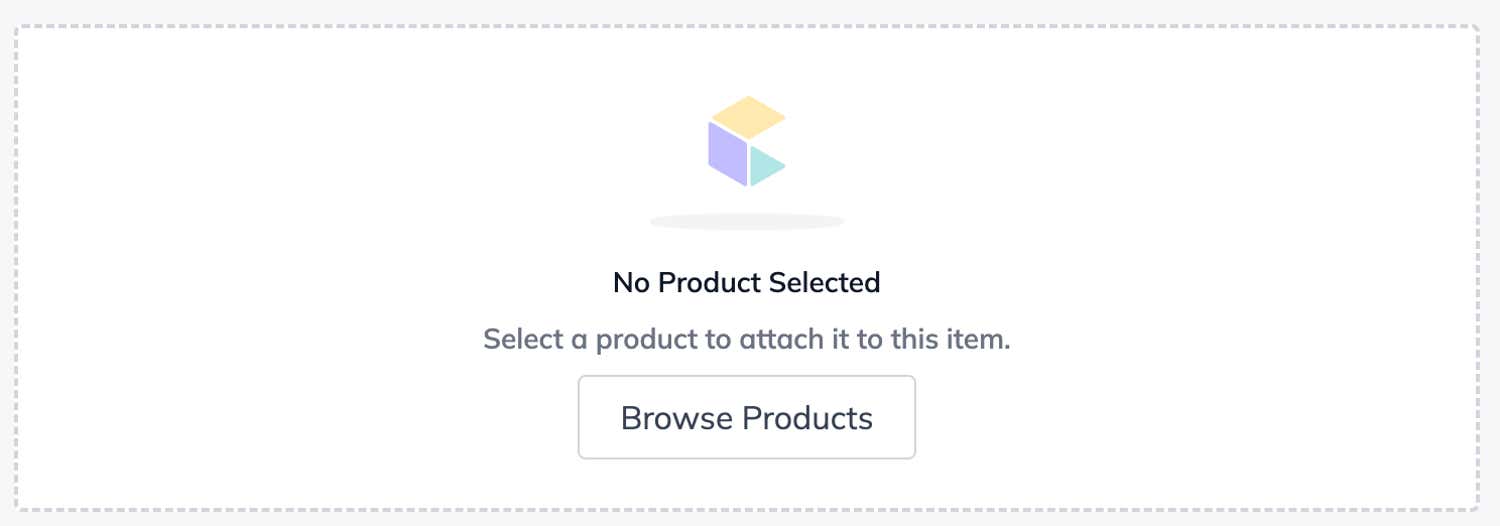
- Locate the CommerceTools Product field in your content item. When no product is selected, you'll see an empty state:
-
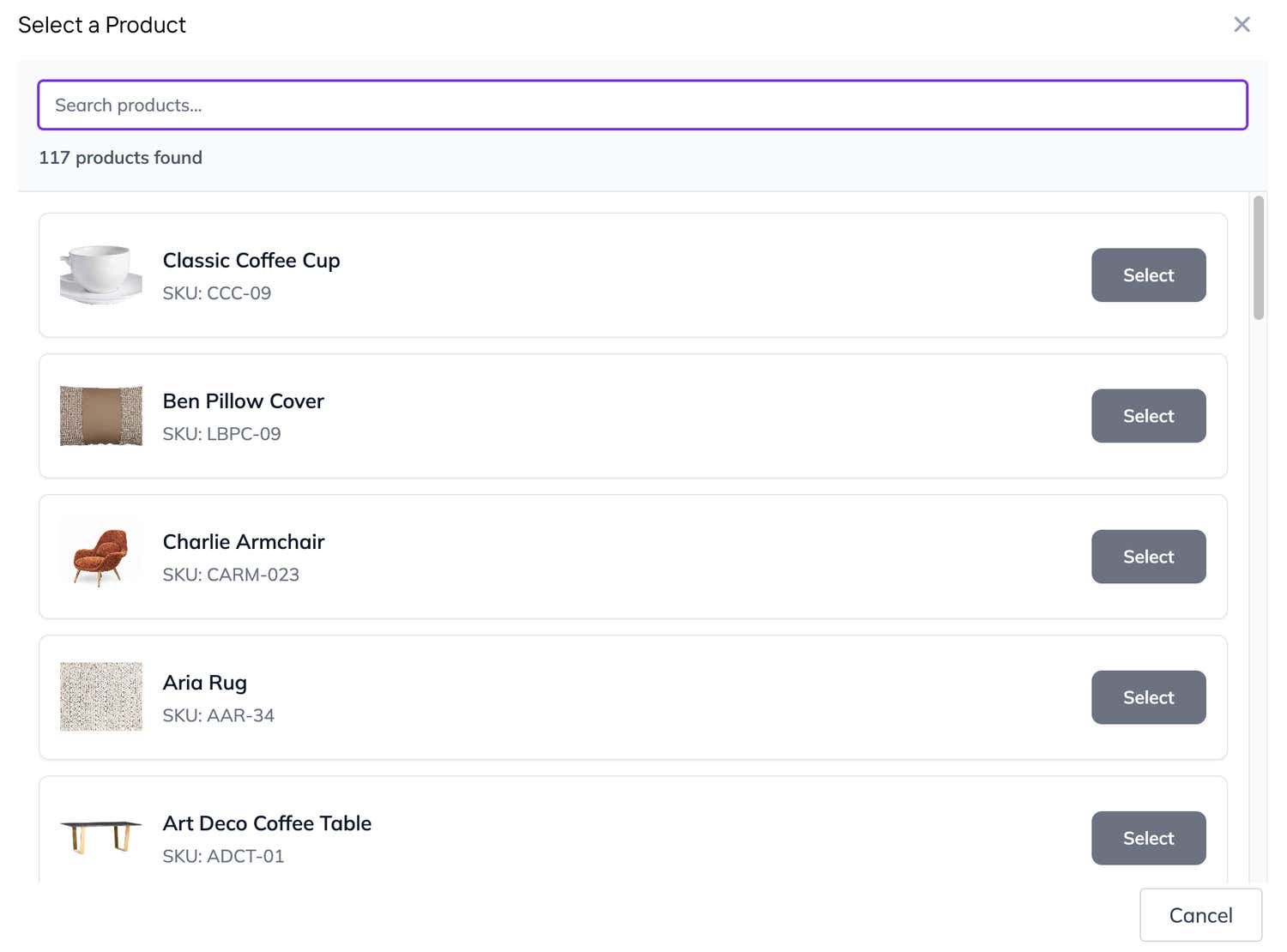
Click Browse Products to open the product selector modal
-
Browse through your product catalog or use the search bar (if enabled):
-
Click on a product to select it
-
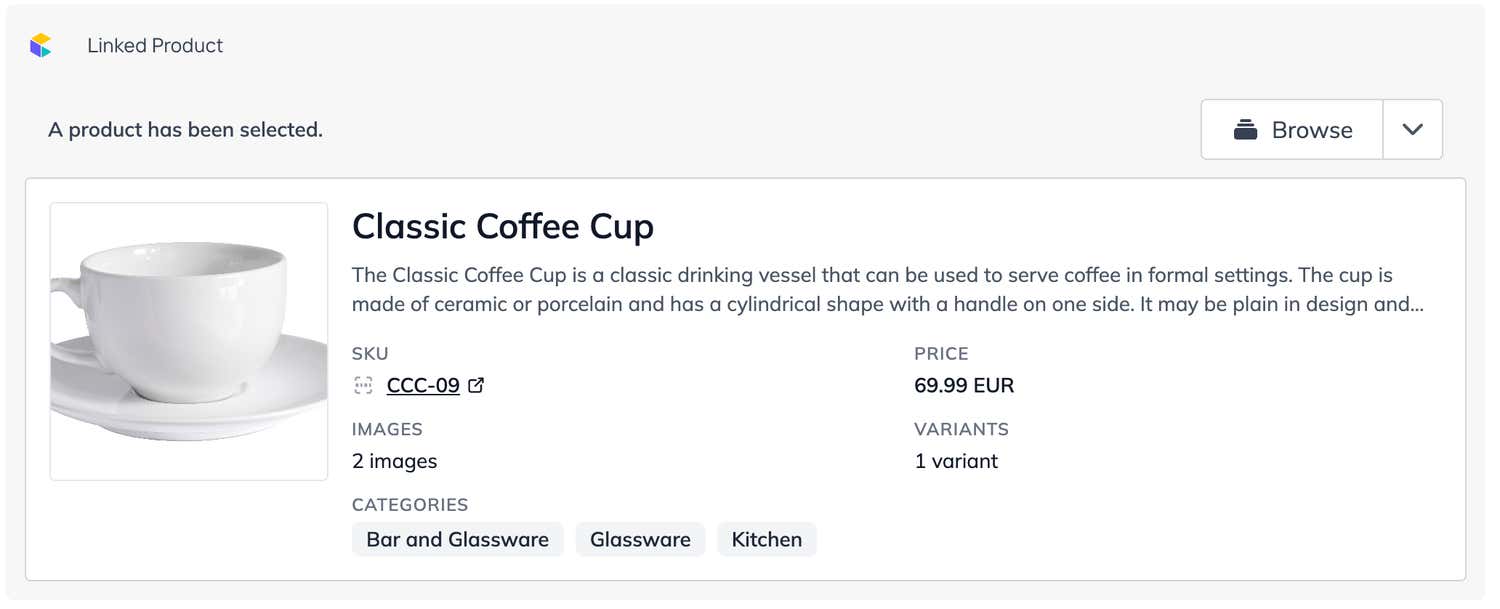
The product details will display in the field, including:
- Product image
- Product name
- SKU with link to Merchant Center
- Price (if available)
- Number of variants
- Categories
Remove a Product
To remove a selected product:
- Click the dropdown arrow next to Browse Products
- Select Remove Product from the menu
Accessing Product Data
Field Value Format
The CommerceTools Product field stores product data as a JSON string. When you retrieve your content, the field value contains:
{
  "id": "abc123-def456-ghi789",
  "entityId": 12345,
  "name": "Example Product",
  "sku": "PROD-001",
  "path": "example-product",
  "description": "Product description",
  "image": {
    "listingUrl": "https://example.com/image-list.jpg",
    "detailUrl": "https://example.com/image-detail.jpg"
  }
}
Using Product Data in Your Frontend
When rendering content in your application, parse the product field value and use it to display product information or fetch additional details from CommerceTools:
React Example
function ProductDisplay({ productFieldValue }) {
  if (!productFieldValue) return null;

  // Parse the JSON string from the field
  const product = JSON.parse(productFieldValue);

  return (
    <div className="product-display">
      <img src={product.image.detailUrl} alt={product.name} />
      <h2>{product.name}</h2>
      <p>SKU: {product.sku}</p>
      {/* Fetch additional details from CommerceTools API using product.id */}
    </div>
  );
}
Next.js Example with CommerceTools SDK
This example uses the App Router. getProductDetails runs inside a Server Component, so your CommerceTools credentials stay on the server.
import { createApiBuilderFromCtpClient } from '@commercetools/platform-sdk';
import { ClientBuilder } from '@commercetools/ts-client';

async function getProductDetails(productId, projectKey, clientId, clientSecret, region) {
  // Create CommerceTools client
  const client = new ClientBuilder()
    .withProjectKey(projectKey)
    .withClientCredentialsFlow({
      host: `https://auth.${region}.commercetools.com`,
      projectKey,
      credentials: { clientId, clientSecret },
      scopes: [`view_products:${projectKey}`]
    })
    .withHttpMiddleware({
      host: `https://api.${region}.commercetools.com`
    })
    .build();

  const apiRoot = createApiBuilderFromCtpClient(client).withProjectKey({ projectKey });

  // Fetch full product details
  const response = await apiRoot
    .products()
    .withId({ ID: productId })
    .get()
    .execute();

  return response.body;
}

// app/products/[slug]/page.jsx (a Server Component)
export default async function ProductPage({ params }) {
  const { slug } = await params;

  // Fetch content from Agility CMS
  const contentItem = await getContentItem(slug);

  // Parse product field
  const selectedProduct = JSON.parse(contentItem.fields.featuredProduct);

  // Fetch full product details from CommerceTools
  const productDetails = await getProductDetails(
    selectedProduct.id,
    process.env.CT_PROJECT_KEY,
    process.env.CT_CLIENT_ID,
    process.env.CT_CLIENT_SECRET,
    process.env.CT_REGION
  );

  return (
    <main>
      <h1>{productDetails.masterData.current.name['en-US']}</h1>
      <ProductDisplay productFieldValue={contentItem.fields.featuredProduct} />
    </main>
  );
}
Best Practices
Performance
- Cache Product Data: Use the product ID from the field value to fetch and cache full product details from CommerceTools on your server
- Image Optimization: Leverage CommerceTools image transformation parameters to optimize image sizes for different viewports
- Lazy Loading: Implement lazy loading for product images to improve initial page load times
Content Management
- Field Descriptions: Add clear descriptions to your CommerceTools Product fields to guide content editors
- Validation: Ensure product data exists in CommerceTools before rendering to avoid broken references
- Fallback Handling: Implement fallback UI for cases where products may be deleted or unavailable
Security
- API Credentials: Store CommerceTools API credentials securely using environment variables
- Read-Only Access: Use API clients with minimum required permissions (
view_productsscope only) - Server-Side Fetching: Fetch sensitive product data on the server side to keep credentials secure
Troubleshooting
Search Functionality Not Available
Problem: The search bar doesn't appear in the product selector, or a message states "Search Not Enabled"
Solution:
- Verify that Product Projection Search is enabled in your CommerceTools project
- Navigate to CommerceTools Merchant Center > Settings > Project settings > Storefront Search
- Enable the feature if it's disabled
- Allow time for products to be indexed (this may take several minutes to hours depending on catalog size)
- Refresh your Agility CMS page
Products Not Loading
Problem: The product selector shows an error or no products appear
Solution:
- Verify your API credentials are correct in the app configuration
- Ensure the API client has the
view_products:{projectKey}scope - Confirm the region value matches your CommerceTools project (check your Merchant Center URL)
- Check that your products are published in CommerceTools
- Review browser console for specific error messages
Product Data Not Displaying
Problem: Selected product information doesn't appear in the content item
Solution:
- Verify the product exists in CommerceTools
- Ensure the locale configured in the app settings matches your product data
- Check that product images are available for the configured locale
- Clear the field value and reselect the product
Invalid Product JSON
Problem: Errors when parsing the product field value
Solution:
- The field may contain data from a previous configuration
- Clear the field value and select a new product
- Ensure you're parsing the JSON correctly in your frontend code
- Verify the product still exists in CommerceTools
Merchant Center Links Not Working
Problem: Clicking the SKU link doesn't open the product in Merchant Center
Solution:
- Ensure you're logged into CommerceTools Merchant Center
- Verify you have access to the project
- Check that the region is correctly configured in the app settings
Additional Resources
- CommerceTools API Documentation
- CommerceTools Product Projection Search
- CommerceTools Platform SDK
- Agility Apps SDK Documentation
- CommerceTools Marketplace
Support
For issues specific to the CommerceTools App integration with Agility CMS, please contact Agility CMS Support.
For questions about CommerceTools product data, API access, or platform features, refer to CommerceTools Support.
On this page