What is your developer-dependent CMS actually costing you? Calculate your costs and get a full report


Pages
Add or Remove a Component
Adding a Component to a Page
1. Click Pages
2. Select the Page you’ll be editing or Create a new Page

3. In the top-right of the Content Zone click + Add Component

4. Drag and Drop the Component you’d like to add
Note
Components found within your Instance are custom components created by the Developer of your digital solution and what you see there may vary.
Renaming a Component
When you add a Component, it takes the name of its Component Model, such as Image with Description. Give each Component a name that says what it holds, so you can tell several Components of the same type apart on a page.
1. Click Pages and select the Page
2. Click the Component to open it
3. Open the Properties tab
4. Change the Display Name (for example, Homepage hero – Q4 campaign) and click Save
The new name appears in the page's list of Components, with the Component Model's name shown underneath it. Each Component is named separately, and renaming one doesn't change its content or how your site displays it.
Renaming the Component Model
Renaming a Component Model under Models changes the name that new Components start with. Components already on your pages keep their own names. Don't change a model's reference name: your site's code uses it to find the right component.
Removing a Component
1. Click Pages
2. Select the Page you’ll be editing or Create a new Page
3. Hover over the Component you’d like to delete and click the Trash icon that appears

4. Confirm you’d like to delete it by clicking Remove Component in the confirmation window
Further Reading
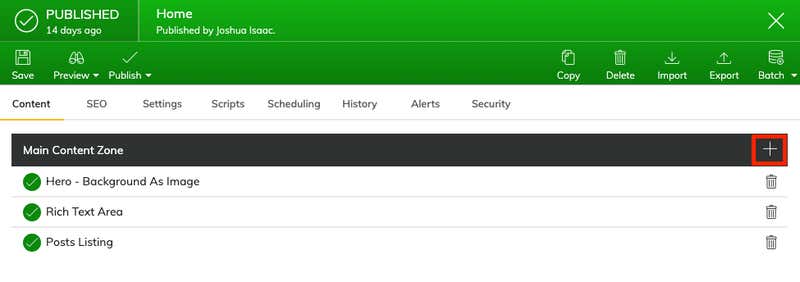
Select an Image
In this tutorial, you will learn step by step how to add a module to a page in your Agility CMS Instance.
Step One: Click "Pages"
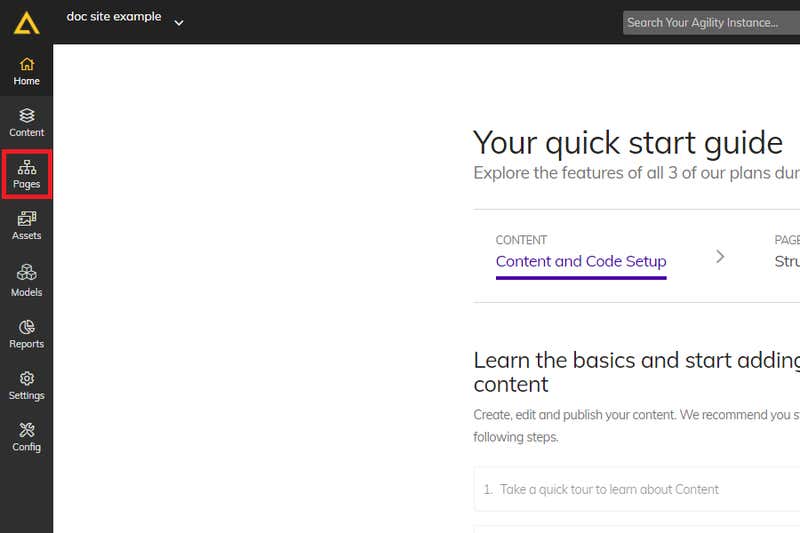
Home Select an Image
Step Two: Click page you wish to add a module to
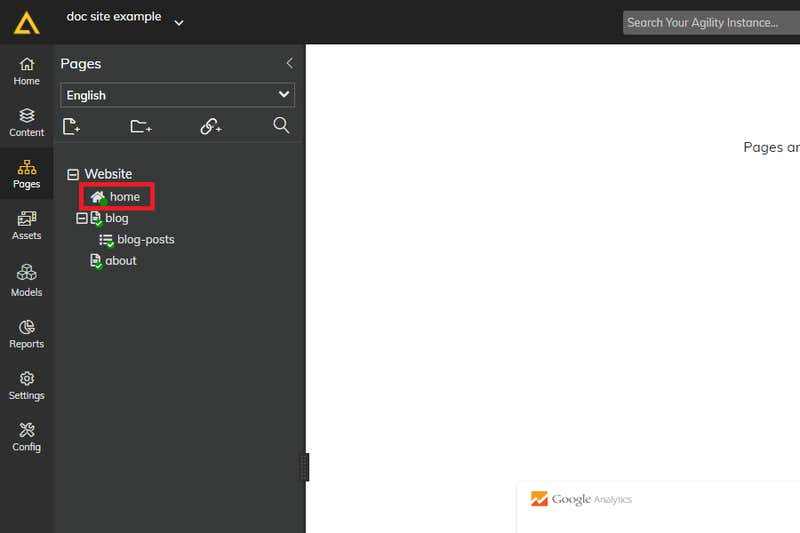
Pages Select an Image
Step Three: Click "+"
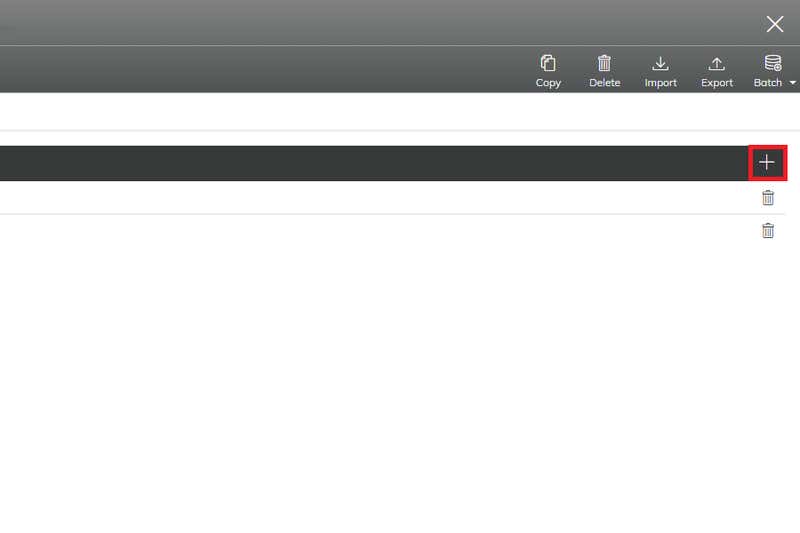
Page Select an Image
Step Four: Click "ADD" under the type of module you wish to add
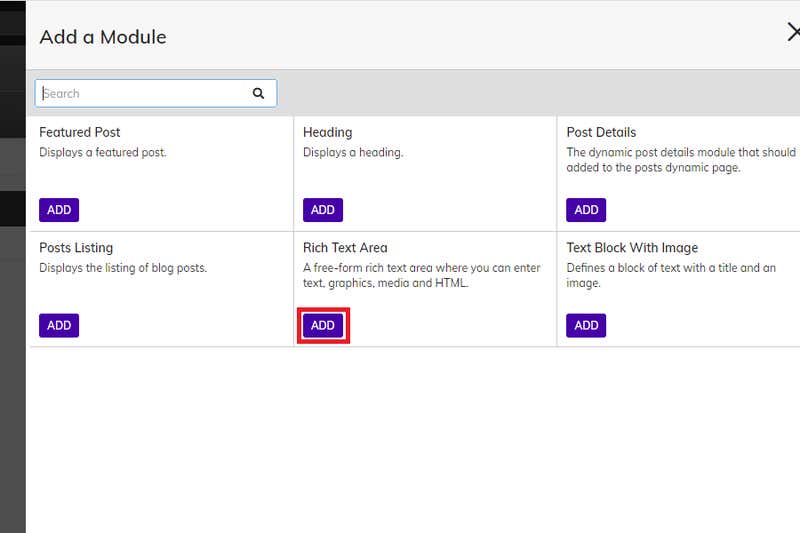
Add a Module Flyout Select an Image
Please note that page modules found within your instance are custom modules created by the developer of your digital solution and what you see there may vary from instance to instance.
On this page