What is your developer-dependent CMS actually costing you? Calculate your costs and get a full report


Authentication
Governing AI Access to Agility CMS
For admins and security reviewers: how the Agility MCP Server authenticates, enforces each user's permissions, confirms destructive actions, and how to roll AI access out safely.
The Agility CMS MCP Server lets AI assistants such as Claude, ChatGPT, GitHub Copilot, Cursor and Microsoft 365 Copilot read and change content in Agility on a person's behalf. This article is for admins, IT and security reviewers deciding whether to allow it, and how to roll it out safely.
The short version: the MCP server does not introduce a new account type or a new set of permissions. Every call runs as a named Agility user, through that user's own OAuth sign-in (or, for unattended automation, a Personal Access Token that belongs to that user), and the Agility Management API checks that user's permissions on every call. The AI can never do more than the person using it could do in the Agility app.
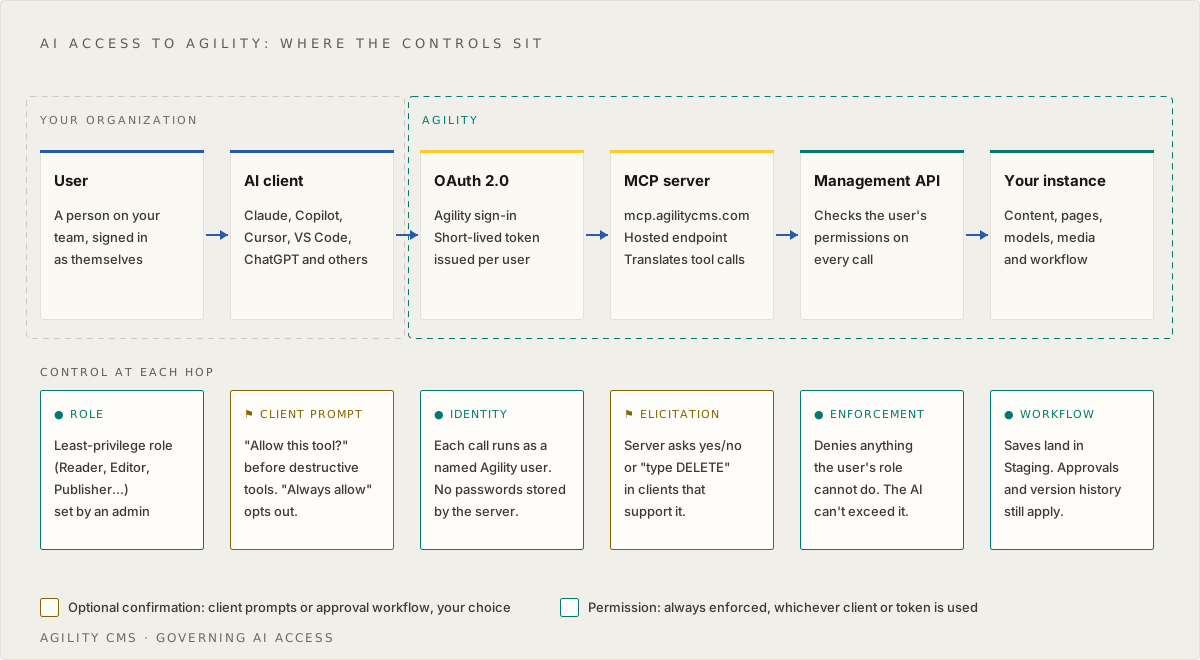
At a glance
| Question | Answer |
|---|---|
| How does the AI authenticate? | OAuth 2.0, per user. Each person signs in through Agility's standard login and gets a short-lived access token. |
| Are there shared API keys? | No. Nothing to copy into a config file, and no shared or service credential is needed to connect. |
| Can the AI exceed the user's role? | No. The Management API enforces the signed-in user's permissions on every call. |
| Does the MCP server store passwords? | No. |
| Do AI edits go live immediately? | Not on save. Saves land in Staging. Publishing is a separate action that needs the user's Publish permission. Whether a person confirms it, an approver signs off, or the AI publishes on its own is your choice. See Levels of autonomy. |
| Do approval workflows still apply? | Yes. AI-made changes move through the same Staging, approval and publish states as any other change. |
| Who is recorded as making the change? | The signed-in user, in the item's version history. |
How authentication works
The hosted server lives at https://mcp.agilitycms.com/api/mcp and uses the Streamable HTTP transport. When someone adds it to their AI client, the client opens a browser window and the person signs in to Agility with their own account. From then on, calls use a short-lived OAuth access token issued for that person.
- One person, one token. There is no organization-wide key. Two people using the same AI tool get two separate connections, each limited to what their own Agility account can reach.
- Same login as the Agility app. People sign in through Agility's standard login with their existing Agility account. No separate MCP account is created.
- Discovery is standard. The server publishes OAuth protected resource metadata at
https://mcp.agilitycms.com/.well-known/oauth-protected-resourceand supports dynamic client registration, so clients such as Copilot Studio can register without anyone creating an app registration. - Enabling a connector is not granting access. On a Claude Team or Enterprise workspace, an admin can enable the Agility CMS connector for everyone. That makes it available. It does not connect anyone: each member still signs in to Agility individually, and their own Agility permissions govern every call.
Confirming who the AI is acting as
The get_current_user tool is a read-only "whoami". It returns the identity behind the active token (userID, userName, emailAddress, firstName, lastName, adminAccess, isSuspended, userTypeID, jobRole and the number of instances the user can access) and never returns credentials.
Encourage people to run it before any bulk or destructive work, and use it when a permission-denied message references a user ID you need to trace.
Which Agility user am I connected as, and how many instances can I reach?
The permission model
The MCP server translates a request like "publish these three items" into Management API calls made with the person's own token. Agility evaluates permissions per user on every Management API call, so:
- A user with the Reader role can browse content, pages and assets through the AI, but any attempt to save is denied.
- A Contributor or Editor can create and change content, but cannot publish unless their role includes Publish.
- Deleting requires the Delete permission. Creating or changing models requires a role such as Designer or Manager.
- A user only sees the instances they already have access to.
get_available_instanceslists exactly those.
Because the check happens at the API, it does not depend on the AI client behaving well. If a user's role cannot do something in the Agility app, it cannot be done through the MCP server either. Because the check runs on every call, the way to narrow what someone can do through AI is the same as in the app: change their role, or remove them from the instance in Settings > User Access.
For the full list of built-in roles and permissions, see User Permissions. Enterprise customers can also define Custom Roles.
Confirmation for destructive actions
Unpublishing and deleting are annotated as destructive. Publishing (publish_content, publish_page) is not, so MCP clients don't force a prompt before it, and users can also choose "always allow" for any tool in their client. Whether a person confirms each publish is therefore something you configure, through client settings and approval workflows, not something the server imposes. For destructive actions, the server stacks up to three layers of protection, depending on what the person's AI client supports:
| Layer | What happens | Who controls it |
|---|---|---|
| 1. Client permission prompt | Destructive tools are annotated as such, so MCP clients ask "Allow this tool to run?" before calling them. | The user, in their AI client. Choosing "always allow" turns the prompt off for that tool. The server cannot override that choice. |
| 2. Server elicitation | On clients that support MCP elicitation (Claude Code, for example), the server shows its own confirmation form in the user's interface, such as "type DELETE" for deletes. The AI assistant cannot answer this on its own. | The Agility MCP server. |
| 3. Agility permissions | On clients without elicitation, the action runs with the user's own token and the Management API allows or denies it based on their role. The response records that no interactive prompt was shown (humanConfirmed: false). | Your role assignments in Agility. |
Approve, decline and request-approval actions are not gated, because they are low risk and already part of a reviewed workflow.
The practical takeaway: layer 3 is the one you fully control. If a group of people should never publish or delete, give them a role without Publish or Delete. Don't rely on a prompt that a user can switch off. If you do want an AI to publish on its own, grant Publish deliberately to the account it runs as, as described in Setting up fully automated publishing.
Saves land in Staging, and your workflow still applies
When an AI saves content through the MCP server, the item lands in Staging. Saving changes to a published item creates a new Staging version while the live version stays as it is. Nothing reaches your live site until it's published, by a person or by an automation you've set up, and publishing always requires the Publish permission.
If you have approvals turned on for a content list or page, AI-made changes go through the same Staging, approval and publish states as changes made by hand. See Approvals and Workflows to enable Requires Approval on pages or Enable Approval Workflow on content lists.
Levels of autonomy
The same AI agent, with the same tools, can run at three levels. Your organization decides, per content type, which level applies.
| Level | What the AI does | Who publishes | What you configure |
|---|---|---|---|
| Assist | Drafts and saves to Staging. | A person, after reviewing it. | Nothing extra. This is the default. |
| Approve | Drafts, saves and requests approval (manage_content_workflow or manage_page_workflow, request-approval). | A publisher approves; then a person or the AI publishes. | Approvals on for those pages and content lists. |
| Autonomous | Drafts, checks its own work and publishes (publish_content / publish_page, or a Management SDK batch publish for unattended jobs). | The AI. | A dedicated automation user, checks, logging and a rollback plan (below). |
All three are valid configurations. Assist and Approve suit content where judgement matters or someone is accountable for what goes live. Autonomous suits repeatable, checkable changes, and is how many teams run scheduled jobs, pipelines and always-on agents.
Setting up fully automated publishing
- Create a dedicated automation user. Add an Agility user for the automation, with access only to the instances it works in. Every change it makes is then recorded against that user in version history, separately from your people.
- Give it a least-privilege role. Start from the Reader role and use Item-level Permissions to grant Edit and Publish only on the content lists and pages it owns, or define a Custom Role. Leave out Delete and model permissions unless the job needs them.
- Choose how it authenticates.
- Unattended jobs (scheduled tasks, CI/CD pipelines, server-side jobs) with no person signed in: use the Management API or Management SDK with a Personal Access Token. A PAT belongs to the user who creates it and inherits that user's permissions, so sign in as the automation user to create it. Set an explicit expiry date, store it in your secrets manager, and rotate it.
- An always-on AI client that uses the MCP server: sign the client in to Agility with OAuth as the automation user, not as a person.
- Set workflow for the content it publishes. Automated publishing needs Requires Approval off for those pages and Enable Approval Workflow off for those content lists, or a role for the automation user that can approve. Keep approvals on everywhere else. See Approvals and Workflows.
- Allow the publish tools in the client.
publish_contentandpublish_pagearen't annotated destructive, so most clients won't stop for them. If yours does, choose "always allow" for those two tools. - Run automated checks before every publish. For example: required fields are filled, links resolve, the page renders in preview, and nothing outside the intended fields changed. Publish only what passes, and send the rest to a person.
- Log and notify on every publish. Add a webhook with Content Publish Events and forward it to your log store, SIEM or team channel, so every automated publish is recorded and visible. See Audit Trail, Logging & SIEM Integration.
- Write a rollback runbook. Unpublish with
unpublish_content/unpublish_page(orbatchWorkflowContentwithWorkflowOperationType.Unpublishfrom the SDK), and restore an earlier version from version history, which brings it back in Staging for you to publish. - Start small. Begin with one low-risk content type, such as SEO descriptions or alt text, watch the publish log for a while, then widen the scope.
For unattended jobs, publishing from the Management SDK looks like this (JavaScript):
import {WorkflowOperationType} from "@agility/management-sdk"

// Content items that passed your checks
await apiClient.contentMethods.batchWorkflowContent(contentIDs, guid, locale, WorkflowOperationType.Publish)

// Pages that passed your checks
await apiClient.pageMethods.batchWorkflowPages(pageIDs, guid, locale, WorkflowOperationType.Publish)
Audit trail and logging
Agility records content activity through version history and the Recent Changes report. Every change creates an immutable version that records what changed, the user who made it, the timestamp and the workflow state, and versions are retained indefinitely. Because the MCP server acts as the signed-in user, a change made through an AI assistant is recorded against that person, the same as a change they made by hand.
Keep these limits in mind when you plan monitoring:
- Agility does not expose a customer-facing administrative or security event log today (logins, permission or role changes, API key issuance). Capture sign-in events in your identity provider. Streaming audit events to your SIEM is on our roadmap: vote for it.
- There is no native SIEM connector yet. To stream content changes, workflow actions and publish, unpublish and delete events into Azure Monitor, Splunk or similar, build a small webhook handler.
The full details are in Audit Trail, Logging & SIEM Integration.
Supported connection
The supported connection is the hosted endpoint https://mcp.agilitycms.com/api/mcp with OAuth 2.0 sign-in (setup steps for each client are at mcp.agilitycms.com/instructions); treat any other "Agility MCP" package or server as untrusted unless Agility publishes it.
Microsoft 365 Copilot
Microsoft 365 Copilot reaches the MCP server through an agent built in Copilot Studio, and that adds three things an admin must check. The full walkthrough is in Connect the Agility MCP Server to Microsoft 365 Copilot.
- Authenticate as the end user, not the maker. In the tool's Additional details, keep Authentication set to End user. With Maker-provided credentials, every Copilot user inherits the maker's Agility permissions, reaches every instance the maker can reach, and every change is attributed to the maker in Agility's history. A Power Platform admin can remove the choice for an environment with the Control maker credential options setting. Also leave Allow permission to share parameters off on the Agility connection.
- DLP policies apply. MCP access in Copilot Studio runs over Power Platform connectors, so your connector data loss prevention policies apply to the Agility MCP Server. New custom connectors land in the Non-business data group by default, which many tenants block. A
DlpViolationErrororBlockedConnectoron publish means a policy is blocking it. - Unattended agents need a different account. Restricting an environment to end-user credentials breaks scheduled and autonomous agents. Run those in a separate environment against a dedicated Agility automation user with scoped permissions, not a person's login. See Setting up fully automated publishing.
What leaves Agility
Anything an Agility tool returns (content, field values, model definitions) becomes part of the conversation in the person's AI client. Review the data handling terms of the AI tools you approve the same way you would for any other tool your team pastes content into. File uploads use a short-lived signed URL, so file bytes do not travel through the conversation.
Recommended rollout policy
- Start read-only. Pilot with people on the Reader role, or give pilot users a role without Publish or Delete. They can explore, summarize and audit content while every write is denied at the API.
- Pick a pilot group and a short list of approved clients. Name the AI tools you allow. Clients that support MCP elicitation give destructive actions a server-rendered confirmation.
- Choose a level of autonomy for each content type. Decide where AI changes are reviewed by a person (Assist), go through an approver (Approve), or publish automatically (Autonomous). See Levels of autonomy.
- Configure workflow to match. Turn approvals on for the content lists and pages where you want an approver to sign off, and off for content an automation publishes.
- Grant Publish and Delete deliberately. Keep them with the people who already hold them, and give Publish to an automation user only for the content it owns. Whether people choose "always allow" for the publish tools in their client is part of the level you picked; keep prompts on for unpublish and delete unless a job needs them.
- Ask people to check identity first. Make running
get_current_userpart of the routine before bulk changes. - Watch the trail. Review version history and the Recent Changes report during the pilot. Forward publish, unpublish and delete webhooks to your log or SIEM, and do this from day one for any automated publishing.
- For Microsoft 365 Copilot, enforce end-user credentials at the environment level and confirm your DLP policy places the connector in an allowed data group before you publish the agent.
Related articles
On this page