What is your developer-dependent CMS actually costing you? Calculate your costs and get a full report


Introduction
Rich Text Editor
What is the Rich Text Editor?
The Rich Text Editor in Agility lets Editors add and format HTML content on a web page without writing any HTML code. It comes with a toolbar of familiar buttons and icons for editing and formatting your content, such as:
- Pasting from Microsoft Word and Google Docs, with the formatting cleaned up for you
- Inserting internal and external images, videos and links
- Text alignment options
- Lists with bullets and sub-bullets
- Creating and managing tables
- A table of contents that links to your headings, and more
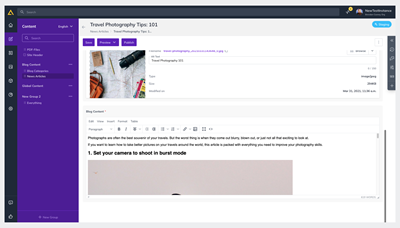
A refreshed editor
In October 2026 the Rich Text Editor was updated to TinyMCE 8. It has a refreshed look: a rounded frame, space between groups of buttons instead of separator lines, and larger buttons.
There is nothing to turn on. Every rich text field and every Rich Text Area Component uses the new editor.
Pasting from Word and Google Docs
When you paste content from Microsoft Word or Google Docs, the Rich Text Editor cleans it up so it arrives as tidy HTML.
- Microsoft Word: Word's extra markup and hidden bookmarks are removed. Bulleted and numbered lists become real lists. Bold, italic and underline that Word writes as styling become normal formatting.
- Google Docs: Bold, italic, underline, strikethrough, superscript and subscript are kept.
- Lettered and roman-numeral lists: lists numbered a, b, c or i, ii, iii keep their numbering type, from both Word and Google Docs.
This cleanup only applies to content copied from Word or Google Docs. It does not change what you paste from web pages or other sources.
Bold or italic that comes from a Word character style arrives as plain text. Formatting you apply directly, for example with Ctrl+B or Cmd+B, is kept. If you use character styles in Word, apply the bold or italic again after you paste.
Adding a table of contents
A table of contents lists the headings in a rich text field, with a link to each one, so readers can jump straight to a section.
- Write your content with headings. Use Heading 1, Heading 2 or Heading 3 from the paragraph style menu at the start of the toolbar.
- Place your cursor where the table of contents should go.
- From the Insert menu, choose Table of contents.
The table of contents lists every Heading 1, Heading 2 and Heading 3 in the field, nested by level. Heading 4 and smaller aren't included. Table of contents stays greyed out until the field has at least one heading.
A field can have one table of contents. It's generated from your headings, so you can't edit its links by hand.
Updating it after you change your headings
The table of contents doesn't change on its own. After you add, remove or rename headings, click the table of contents and click Update on the small toolbar that appears. Choosing Insert > Table of contents again does the same thing.
Updating rebuilds the whole table of contents, including its title. If you renamed the title, rename it again after you update.
Tables of contents from the classic Content Manager
A table of contents you made in the classic Content Manager shows up in this editor as it is, and you can update it here. Both editors save the same HTML.
For developers: the table of contents is saved as a <div class="mce-toc"> with a title and a nested list of links. Each listed heading gets an id so the links work on your page. Style it on your site with the .mce-toc class.
Read-only fields
When a rich text field is read-only, you can still select and copy its text. While an item is saving, its rich text fields are briefly greyed out.
Viewing the HTML code
The Rich Text Editor also lets Editors view and edit the HTML code of the content they've created in it. To do this:
- From the Rich Text Editor menu, click < >
- A pop-up window opens, showing the HTML code and letting you edit it
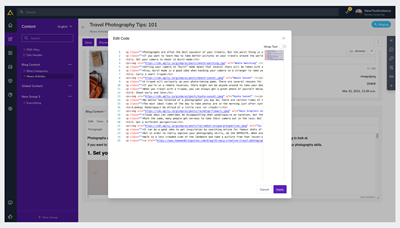
Be mindful of the code you enter here, so that nothing breaks on the front end. If you're unfamiliar with HTML, we recommend sticking with the Rich Text Editor's main interface. If you need to go back to an earlier version of the page, you can do so from the Activity Feed.
Buttons added by apps
An installed app can add its own buttons to the Rich Text Editor toolbar. They appear after the built-in buttons. An app button inserts an embed that the app manages, such as a card or a widget. Click the embed to edit it in the app.
Developers can learn how to build these buttons in the Apps SDK article.
The Rich Text Editor, sometimes called a WYSIWYG (What You See Is What You Get), is a module that comes by default with every Agility CMS Instance.
It empowers editors with an editing experience that allows them to quickly and easily add, and control the appearance of HTML content on a webpage without having to actually write any HTML code.
The Rich Text Editor is equipped with a toolbox of familiar buttons & icons for editing and formatting your content.

Select an Image
Some features of the Rich Text Editor include:
- Inserting internal/external links, images & videos
- Format text output
- Text alignment options (left, center, right, justify)
- Create lists with bullets & sub-bullets
- Create tables by selecting a number of rows, columns, and merging
- & more

Select an Image
Feel like getting your hands dirty?
The Rich Text Content Editor allows you to view and edit the code for your HTML markup!


Select an Image
On this page