What is your developer-dependent CMS actually costing you? Calculate your costs and get a full report


Assets
Finding Where an Asset Is Used
See which pages, components and content items use an image or file before you rename, replace or delete it, and what the in-use warning on delete means.
Before you rename, replace or delete an image or file, you can check where it's used. Agility lists the pages, components, list items and content items that reference the asset, so you can see what would be affected before you change it.
Agility checks both ways content can use an asset:
- Attached to a field, such as an image field or a file attachment field.
- Embedded in content, such as an image placed in a rich text field.
See where an image is used
- Go to Assets and find the image.
- Open the image to edit it. The image editor opens, with the image's details on one side.
- Scroll to the bottom of the details. If the image is used anywhere, a Used in section lists each place, grouped into Pages, Components, List items and Content items.
Each entry shows how the asset is used (attached to a field or embedded in content), its locale and its publishing state.
See where any other file is used
For SVGs, PDFs, documents, videos and other file types, the list appears when you rename the file:
- Go to Assets and find the file.
- Open it. The Rename Asset dialog opens.
- Below the file name, you'll see where the file is currently used.
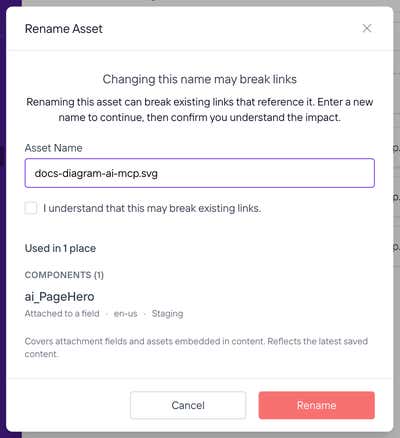
This tells you which content a rename would affect. Renaming can break existing links to the file, so the dialog asks you to tick I understand that this may break existing links before you rename it.
Deleting an asset that is in use
When you delete assets, the Delete prompt checks them first. If an asset is in use, the prompt warns that deleting it will break links on your website. When you delete several assets at once, the prompt checks each one and marks any that are in use, and any whose usage couldn't be confirmed.
If any asset is in use, or its usage is unknown, you need to tick I understand that deleting will cause breakage on the website before Delete becomes available. This is there so an image doesn't disappear from a live page by accident.
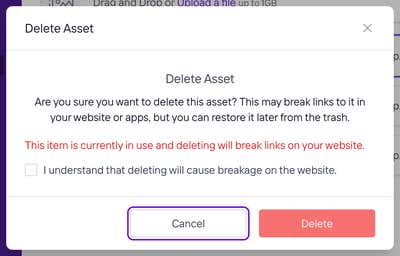
If you delete an asset by mistake, you can restore it from the trash (the Recycle Bin in Assets). See Deleting and Restoring Content.
What Where Used can and can't see
Keep these in mind before you rely on an empty result.
It only sees content inside Agility. Where Used searches your Agility content. It can't see an asset's URL if it's written directly into your website's code, templates or stylesheets, or used in emails or another system. If your developers link to assets directly, check with them before you delete anything.
It shows your latest saved content. Results reflect the most recent saved version of each item, including changes that aren't published yet. If you removed an image in a draft that isn't published, your live page may still be showing it. Publish the change first, then delete the image.
Some lookups can't be completed. If a lookup returns too many results to check them all, Agility says so rather than reporting the asset as unused. Treat that asset as in use.
Related articles
On this page