What is your developer-dependent CMS actually costing you? Calculate your costs and get a full report


Extensibility
Migrating Content into Agility with an AI Agent
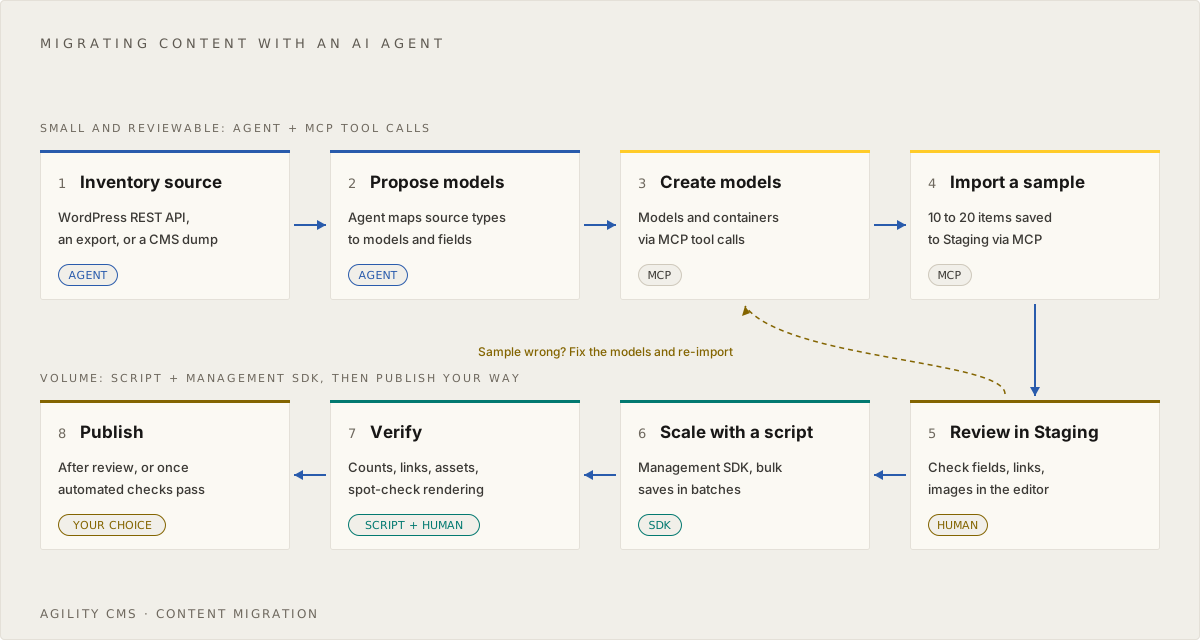
An end-to-end migration with an AI agent and the Agility MCP Server: inventory the source, model, import a sample to Staging, then scale with a Management SDK script and publish after review or automated verification.
An AI agent connected to the Agility CMS MCP Server is a fast way to start a content migration. It can read your old content, propose content models, create them in Agility and import a reviewable sample, all from a conversation. For the full volume, you switch to a script that uses the Management SDK, which the same agent can help you write.
This guide walks through the whole process, using a WordPress site as the example source. The same steps apply to any source you can read as JSON, CSV or HTML.
Before you start
- Connect the MCP server to your AI client using the steps at mcp.agilitycms.com/instructions. The agent acts as you, with your Agility permissions. Creating models and containers needs a role that can manage models (Designer, Manager or Admin). See Governing AI Access to Agility CMS for how permissions and confirmations work.
- Use a non-production instance if you can, or at least a new set of containers, so a bad first pass is easy to throw away.
- Everything you save lands in Staging. Neither the MCP server nor the SDK publishes on save. You publish at the end, after a human review or an automated verification.
Step 1: Inventory the source
Give the agent a way to read the source. For WordPress, the REST API is the simplest: posts are at /wp-json/wp/v2/posts, with categories, tags, users and media at their own endpoints. For other systems, an export file (CSV, JSON or XML) works just as well.
Ask for an inventory, not an import:
Read https://example.com/wp-json/wp/v2/posts?per_page=5 and the categories,
tags and users endpoints. Give me an inventory of the content types, how many
items of each exist, every field that is actually populated, which fields hold
HTML, which reference other records (author, categories, featured image), and
any shortcodes or embeds in the body HTML. Don't write anything to Agility yet.
What you want back:
- A count per content type (posts, pages, categories, authors, media).
- The real fields in use, not every field the source system supports.
- The relationships between records, which become linked content in Agility.
- The assets you will need to move (featured images, inline images, files).
- Anything awkward: shortcodes, page-builder markup, custom fields.
Starting from a live site (no export access)
Sometimes there is no API or export file to read: the old CMS has been switched off, you don't have admin access, or the site was built by hand. You can still use the public site as the source by crawling it.
- Make sure you're allowed to. Crawl only a site you own or have the owner's permission to migrate, and only content you have the rights to reuse. Respect the site's
robots.txt, send one request at a time with a pause between them, and identify your crawler with a clear user agent. Don't crawl pages behind a sign-in unless the owner has given you access for this purpose. - Start from the sitemap. Read the site's
sitemap.xml, then follow internal links to find pages it leaves out. Record every URL you find, including those that redirect or return errors. That list becomes your redirect map; see Keep Your Search Rankings Through a Migration. - Extract structure, not pages. Pages built from the same template share a layout. Have the agent sample a few pages of each kind, propose which parts are fields (title, date, author, summary, body, images), then extract those parts into JSON, one record per page, with its source URL. Don't paste whole HTML pages into a body field. Legacy Content Migration covers parsing HTML into structured fields.
- Keep a provenance record. For each item, record its source URL, the date you collected it, and whether it was copied as is or rewritten. Store the source URL in the
SourceIDfield so a re-run updates items instead of duplicating them. - Check what the crawl can't see. A crawl finds only what is publicly rendered: no drafts, no unpublished content, and possibly nothing that a page loads with JavaScript after it opens. Compare your counts with what the site's owner expects.
Read https://example.com/sitemap.xml and list every URL, grouped by the kind
of page it looks like. Fetch three pages of each kind, one request at a time,
and respect robots.txt. For each kind, propose the fields to extract and how to
find each one in the HTML. Don't write anything to Agility yet.
Once you have JSON records, continue with Step 2 as you would for any other source.
Step 2: Have the agent propose content models
Ask the agent to design target models from the inventory and to check what already exists in your instance first:
Using that inventory, propose Agility content models for this content.
First call get_content_models and get_containers on instance <your-guid> so you
don't duplicate anything that already exists. For each model give me the
reference name, every field with its Agility field type, which fields are
required, and how relationships map to linked content. Use PascalCase reference
names with no hyphens. Present it as a table and wait for my approval.
Review the proposal before anything is created. A few things to check:
- Structure, not HTML blobs. Authors, categories and featured images should be their own fields or linked items, not left inside the body. See Legacy Content Migration for why.
- Reference names. Use letters and numbers only. A hyphenated container name works in the Management API but cannot be queried through GraphQL. Model and field names are conventionally PascalCase (
BlogPost,PublishDate). - Linked content fields come in threes. A linked-content dropdown or search list box needs two companion
Textfields to store its selection, for exampleCategory,Category_TextFieldandCategory_ValueField.
Step 3: Create models and containers through MCP
Once you approve the design, let the agent create it:
Create the approved models with save_content_model, then create one container
per model with save_container. Create the models that others link to (Author,
Category) first. When you're done, call get_content_model_details for each model
and get_containers, and show me the exact reference names Agility returned.
Keep the reference names exactly as get_containers returns them. You will use them in every later step, and case matters (see Linked content and the reference-name case gotcha below).
Step 4: Import a sample to Staging and review it
Import a small, varied sample, around 10 to 20 items, with at least one of each awkward case from your inventory:
Import 10 posts into the BlogPosts container in en-us, chosen to cover the
edge cases you found (long posts, posts with several categories, posts with
inline images and embeds). Import the Authors and Categories they reference
first and keep a map of WordPress ID to Agility contentID. Upload each featured
image with initialize_media_upload into the folder images/blog-migration and
use the returned URL. Save with save_content_items. Do not publish anything.
Then read every saved item back with get_content_item and list its contentID
and edit URL.
Then review the sample in the Agility editor, not just in the chat:
- Open a few items from the edit URLs
save_content_itemsreturns. - Check that linked fields show the right author and category, that images display, and that the body renders cleanly.
- Read an item back with
get_content_itemand note the exact shape of each field. Your script will write the same shapes.
If the sample is wrong, fix the models and re-import. It is much cheaper to change a model now than after 5,000 items exist.
Step 5: Scale up with a Management SDK script
MCP tool calls are ideal for modeling and for samples, because every call is visible and reviewable in the conversation. They are not the right tool for thousands of items: each call travels through the conversation, and individual tools work in small batches (for example, get_content_item fetches at most 50 items per call). Once the sample is approved, move the volume into a script.
A reasonable rule of thumb: dozens of items through the agent, hundreds or more through a script. Ask the agent to write the script for you from the approved models and the sample shapes:
Write a TypeScript script using @agility/management-sdk that imports all
WordPress posts into BlogPosts, using the field mapping and the field shapes
from the sample we just reviewed. Page through existing items first so re-runs
update instead of duplicating. Save in sequential batches of 50. Do not publish.
Authenticate
The SDK takes an OAuth access token or, for automation, a Personal Access Token. OAuth access tokens last 24 hours; request the offline_access scope if the job needs a refresh token. See Getting Started with the Management SDK.
import * as mgmtApi from "@agility/management-sdk"
import {WorkflowOperationType} from "@agility/management-sdk"
import FormData from "form-data"

const options = new mgmtApi.Options()
options.token = process.env.AGILITY_TOKEN! // OAuth access token or PAT
const apiClient = new mgmtApi.ApiClient(options)

const guid = process.env.AGILITY_GUID!
const locale = "en-us"
Read the source
// WordPress caps per_page at 100 and reports the page count in a header.
async function fetchAllPosts(site: string) {
	const posts: any[] = []
	for (let page = 1; ; page++) {
		const res = await fetch(`${site}/wp-json/wp/v2/posts?per_page=100&page=${page}`)
		if (!res.ok) break
		posts.push(...(await res.json()))
		if (page >= Number(res.headers.get("X-WP-TotalPages"))) break
	}
	return posts
}
Build a lookup of what already exists
Store the source ID in a field (for example SourceID) so a re-run updates items instead of creating duplicates. getContentList returns 50 items unless you pass take, so page until a short page comes back.
async function existingBySourceId(referenceName: string) {
	const PAGE_SIZE = 250
	const map = new Map<string, number>()
	for (let skip = 0; ; skip += PAGE_SIZE) {
		const page = await apiClient.contentMethods.getContentList(referenceName, guid, locale, {
			take: PAGE_SIZE,
			skip,
		})
		for (const item of page.items) {
			// Read field names back in the case your sample item showed (often camelCase).
			if (item.fields.sourceID) map.set(String(item.fields.sourceID), item.contentID)
		}
		if (page.items.length < PAGE_SIZE) break
	}
	return map
}
Upload assets
assetMethods.upload takes a FormData, a media library folder path, the instance GUID and a gallery ID (-1 for none), and returns the created media with its url and mediaID.
async function uploadImage(sourceUrl: string): Promise<string> {
	const fileName = new URL(sourceUrl).pathname.split("/").pop()!
	const bytes = Buffer.from(await (await fetch(sourceUrl)).arrayBuffer())

	const form = new FormData()
	form.append("files", bytes, fileName)

	const [asset] = await apiClient.assetMethods.upload(form, "images/blog-migration", guid, -1)
	return asset.url
}
Before re-running a migration, assetMethods.getAssetByUrl (or list_media from the agent) helps you find assets you already uploaded, so you don't create duplicates.
Save in sequential batches
saveContentItems returns content IDs in the same order as the input, and -1 for an item that failed. Process batches one after another, never in parallel: parallel calls can trigger rate limiting and batch conflicts.
async function importPosts(site: string, authorIds: Map<string, number>, categoryIds: Map<string, number>) {
	const posts = await fetchAllPosts(site)
	const existing = await existingBySourceId("BlogPosts")

	const items = posts.map((post) => {
		const categoryId = categoryIds.get(String(post.categories[0]))
		return {
			contentID: existing.get(String(post.id)) ?? -1, // update if it exists
			properties: {definitionName: "BlogPost", referenceName: "BlogPosts"},
			fields: {
				Title: post.title.rendered,
				Slug: post.slug,
				Body: post.content.rendered,
				PublishDate: post.date,
				SourceID: String(post.id),
				// Linked content: set Category and Category_TextField too, copying the
				// exact shape you saw on the reviewed sample.
				Category_ValueField: categoryId ? String(categoryId) : "",
				// Add images the same way, using uploadImage() and the attachment
				// shape from the sample item you read back in Step 4.
			},
		}
	})

	const BATCH_SIZE = 50
	const savedIds: number[] = []
	const failed: string[] = []
	for (let i = 0; i < items.length; i += BATCH_SIZE) {
		const batch = items.slice(i, i + BATCH_SIZE)
		const ids = await apiClient.contentMethods.saveContentItems(batch, guid, locale)
		ids.forEach((id, n) => {
			if (id === -1) failed.push(batch[n].fields.SourceID)
			else savedIds.push(id)
		})
		console.log(`Saved batch ${i / BATCH_SIZE + 1}: ${ids.length} items`)
	}
	console.log(`Failed source IDs: ${failed.join(", ") || "none"}`)
	return savedIds // keep these for the publish step
}
Every Management API write is queued and completes moments later; the SDK waits for it before returning. If a large batch times out while waiting, raise options.retryCount rather than assuming the write failed. See How writes complete.
Each save creates a new version, so only write items whose content actually changed when you re-run.
For the full method reference, see Content Items, Models, Containers and Assets.
Linked content and the reference-name case gotcha
Linked content is where most migrations go wrong:
- Import in dependency order. Create the items others point to (authors, categories, tags) first, keep a map from source ID to Agility
contentID, then import the items that reference them. - Fill the companion fields. A linked-content dropdown stores its selection in its
_ValueField(the linked item'scontentID) and_TextField(the display text). Checkget_content_model_detailsfor the exact field names on your model. - User Selectable fields store a container reference name, and case matters. The editor matches that name against the real container case-sensitively. If the stored value is
blogcategoriesinstead ofBlogCategories, the item saves and the value fields look right, but the dropdown renders blank in the editor. Reads won't warn you, because read APIs return reference names in lowercase.- Through MCP,
save_content_itemsnormalizes the case to the canonical value fromget_containersfor you. - Through the SDK or the REST API, there is no such safety net. Copy the reference name exactly as
get_containersreturned it.
- Through MCP,
- Multi-select fields. For search list boxes and other multi-value links, read back an item you set by hand in the editor and copy that format exactly.
Pagination: don't trust the first page
Agility list calls return 50 items by default and at most 250 per request. A migration that reads one page silently misses everything after it.
| Where | Default | Maximum | How to page |
|---|---|---|---|
MCP get_content_items | 50 | 250 | take and skip |
MCP list_media | 50 | 250 | pageSize and recordOffset |
SDK contentMethods.getContentList | 50 | 250 per request | take and skip, until a short page comes back |
| GraphQL and Fetch API lists | 50 | 250 | take and skip |
Also note: a newly created item in Staging may not show up in get_content_items results right away. To confirm an item exists, fetch it by ID with get_content_item.
Verification checklist
Before you publish, check the following, by hand, with a script, or both:
- Counts match. Items per container in Agility equal items per type in the source, minus anything you deliberately skipped. Page through every list to count.
- No failed saves. Every
-1in asaveContentItemsresult is accounted for. - No duplicates. Re-running the script updated items instead of creating new ones.
- Linked content resolves. Spot-check items in the editor: dropdowns show the right selection, not a blank.
- Assets uploaded once. Image fields point at
cdn.aglty.ioURLs, not the old site, and the media library has no duplicates. - Body content is clean. No leftover shortcodes, page-builder markup or links to the old domain.
- Locales are right. Content landed in the locale you intended (check with
get_locales). - It renders. Preview a sample of migrated items on your site in preview mode.
The agent is useful here too:
For the BlogPosts container in en-us, page through every item with take 250
and report: the total count, any items with an empty Title, Body or
Category_ValueField, any Body that still contains "[" shortcodes or links to
example.com, and any image field that doesn't point at cdn.aglty.io.
Publish: after review, or automatically once checks pass
Nothing you have imported is live yet. Choose how it goes live:
- Human spot-check, then publish. Reviewers check a sample of the migrated items in the editor and in preview, and sign off. Then you publish in batches.
- Automated verification, then batch publish. A script runs the verification checklist above against every item (counts, failed saves, duplicates, linked content, assets, body content, rendering) and publishes the items that pass, with no one in the loop. Items that fail stay in Staging for a person to look at. Run the job as a dedicated automation user with a Personal Access Token, and log every publish with a webhook. See Setting up fully automated publishing.
Either way, publish from a script with batchWorkflowContent and the IDs you saved:
// Run after reviewers sign off, or after your automated checks pass.
// idsToPublish: the content IDs returned by importPosts(), filtered to the
// items that passed review or your checks.
const BATCH_SIZE = 50
for (let i = 0; i < idsToPublish.length; i += BATCH_SIZE) {
	const batch = idsToPublish.slice(i, i + BATCH_SIZE)
	await apiClient.contentMethods.batchWorkflowContent(batch, guid, locale, WorkflowOperationType.Publish)
}
If a published batch turns out to be wrong, the same method takes WorkflowOperationType.Unpublish, and version history lets you restore an earlier version of an item.
For a small set, you can ask the agent to publish specific items with publish_content. It runs with your permissions. It isn't annotated as destructive, so whether your client asks before it runs depends on your client settings. If the containers you migrated into require approval, request approval and let an approver sign off first, or run the job as a user whose role can approve.
Related articles
On this page